The Advanced Styling feature of LeadCenter.AI Website is an advanced form of styling which by default has plain and minimal styles. There are no rounded corners shadows etc. It list a range of advanced styling which can be changed or modified according to your requirement. The Default style which is generally applied to any new website which is created.
To change or modify Advanced Styling for Website;
- In LeadCenter.AI Store Manager > Website Builder, click Advance > Styling.
The Advanced Styling page is displayed.
- Choose the style for your website from the given list.
- On the selected style click on Apply Style
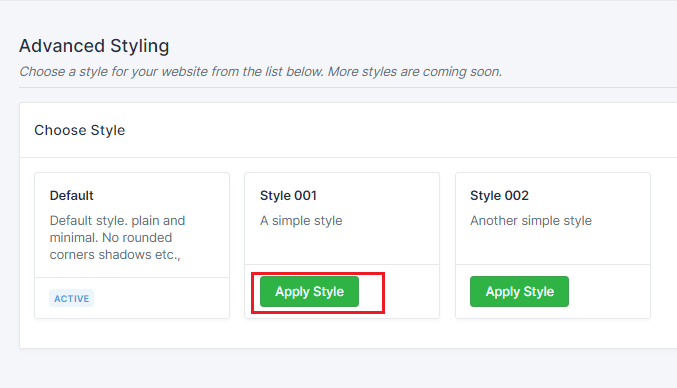
A message is displayed “Successfully applied the style.“
- Click on
 icon to see the newly applied style for the website.
The Advanced Typography feature of LeadCenter.AI Website is a type of design which uses advanced form of font, size, color, layout and alignment. It list a range of advanced typography which can be changed or modified according to your requirement.
To change or modify Advanced Typography of Website;
- In LeadCenter.AI Store Manager > Website Builder, click Advance > Typography.
The Advanced Typography page is displayed.
- Choose the typography for your website from the given list
- On the selected typography click on Apply Typography
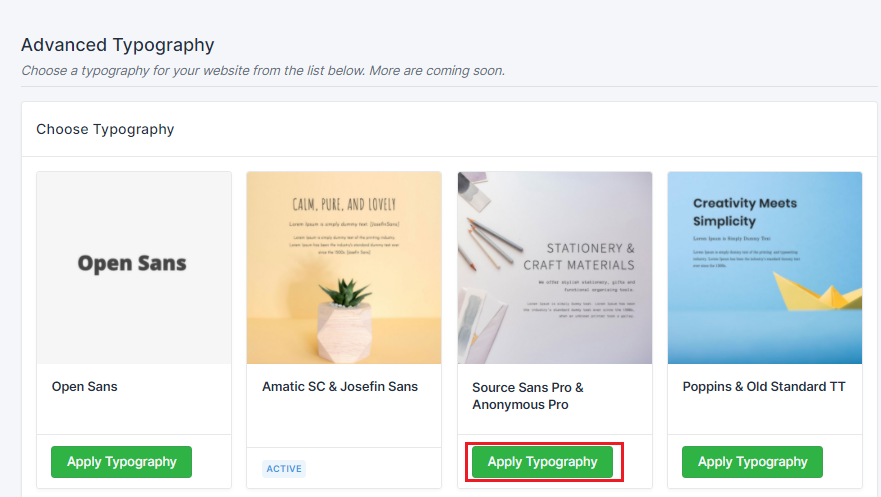
The message is displayed “Successfully applied the typography“.
- Click on icon to see the newly applied theme for the website.
The Advanced Coloring feature of LeadCenter.AI Website manages the color scheme of your website. It comes with a pre-defined set of color schemes which you can choose from. Each pre-defined template comes with two major colors which is the primary color and secondary color, which comes with both light and dark options.
It also provides the user to create their own color schemes from the Advanced Coloring panel. You can create your own primary and secondary colors by adding the color in hexadecimal format.
To change or modify Advanced Coloring, do the following;
- In LeadCenter.AI Store Manager > Website Builder, click Advance > Coloring.
The Advanced Coloring page is displayed.
- In Advanced Coloring page go to Choose Colors panel.
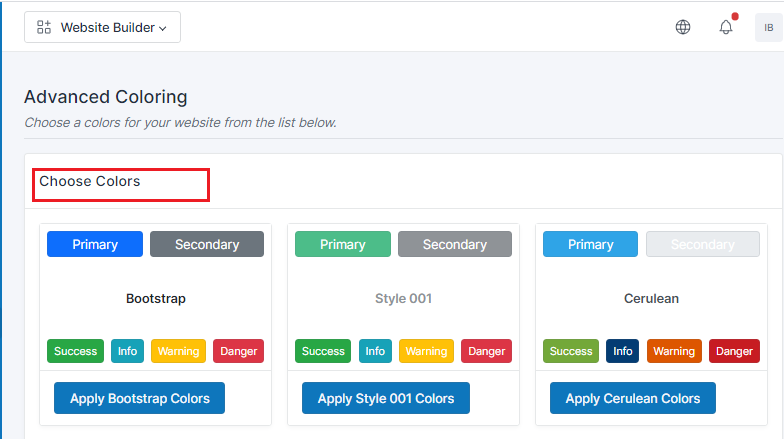
- To modify select the color from the pre-defined list and click on “Apply Litera Colors” for example
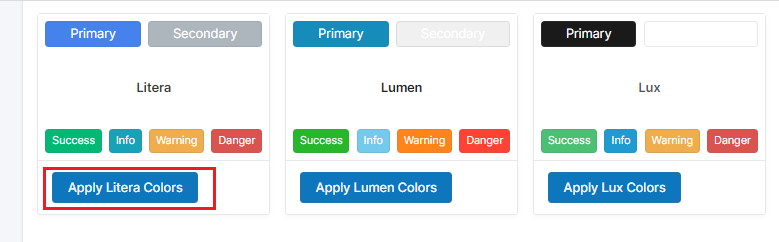
A success message is displayed “Successfully Applied the Colors“
To customize the Advanced Coloring, do the following;
- In LeadCenter.AI Store Manager > Website Builder, click Advance > Coloring.
The Advanced Coloring page is displayed.
- In Advanced Coloring page go to Choose Colors panel.
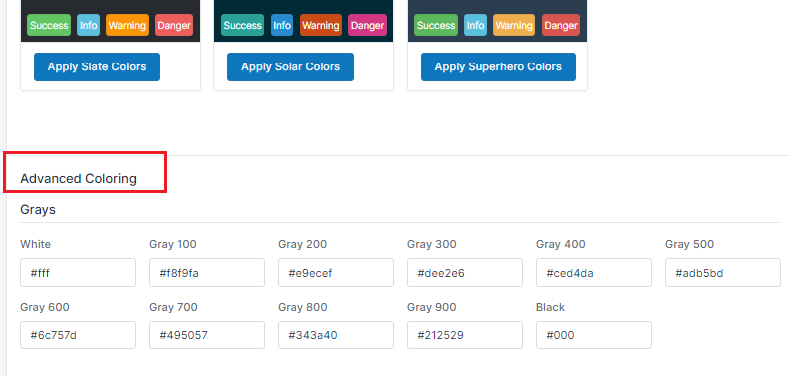
- To modify the Primary and Secondary Colors go to Brand Colors and add the colors in hexadecimal format.
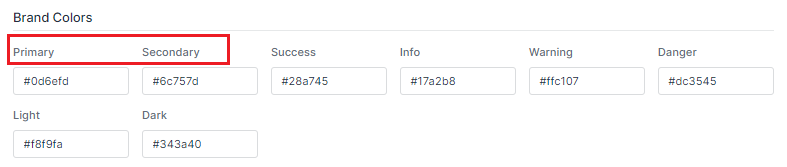
- To modify the for the body color, text etc. go to Miscellaneous in hexadecimal format

- Click Apply Advanced Colors to save the customized changes.
A success message is displayed “Successfully Applied the Colors“

