LeadCenter provides you the ability to integrate LeadCenter Calendars with Redtail CRM calendars. To enable the integration, follow these steps:
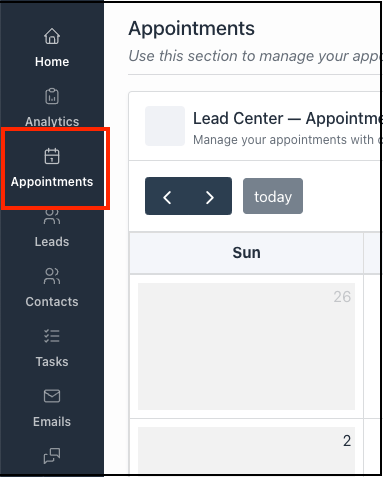
On LeadCenter.AI, click on Appointments on the left menu
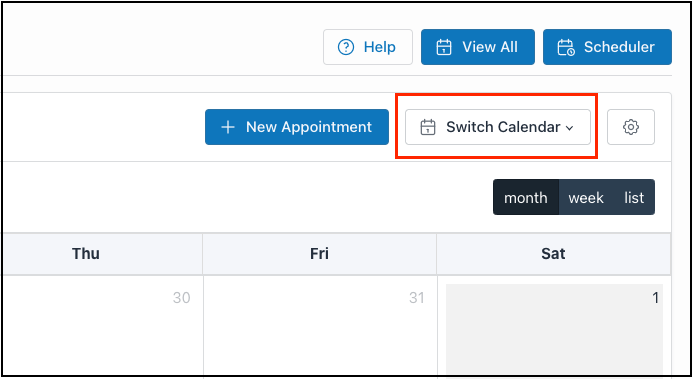
2. Click on the Switch Calendar button in the upper right corner and select the calendar that you want to connect to the Redtail calendar
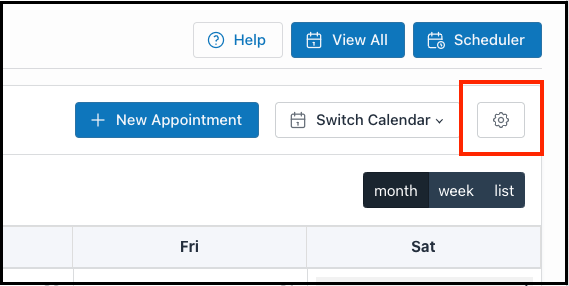
3. Click on the setup button (gearbox) in the upper right corner
4. Scroll down to the bottom of the page until you reach Step 5, Connect Your Accounts
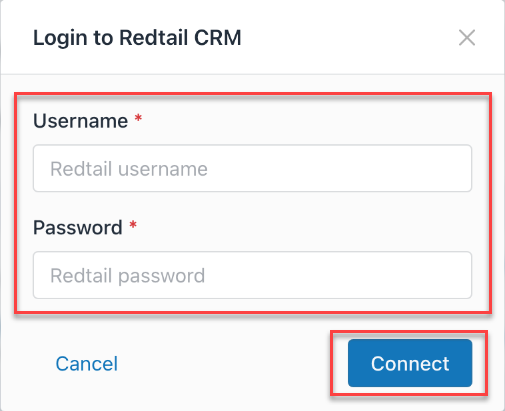
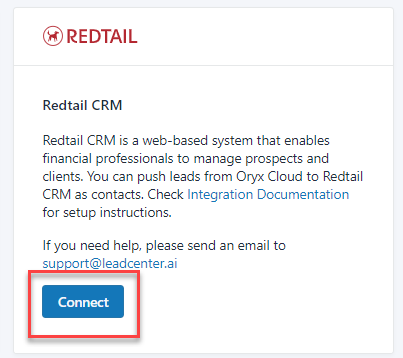
5. The Login to Redtail CRM dialog is displayed. Click on the Connect button
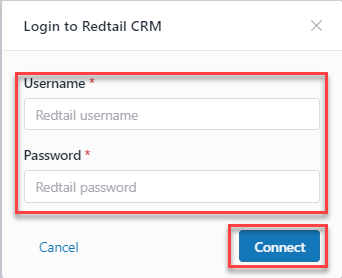
6. Enter your Redtail CRM Username, Password and click on the Connect button. This will sync your calendar in LeadCenter with the Redtail CRM calendar.
Hint: Connecting one user calendar will NOT connect the calendar for all users. each user must do the same steps for her\his own calendar.
Redtail CRM is a web-based system that enables financial professionals to manage prospects and clients. You can push leads from Oryx Cloud to Redtail CRM as contacts.
The Lead Capturing software captures leads by Phone, Forms, chat, and Email, and pushes them to Redtail CRM as a Contact.
Setting up the Integration
To set up the integration, users will need to enable the integration with Redtail within your LeadCenter.AI Account.
To enable the integration, do the following:
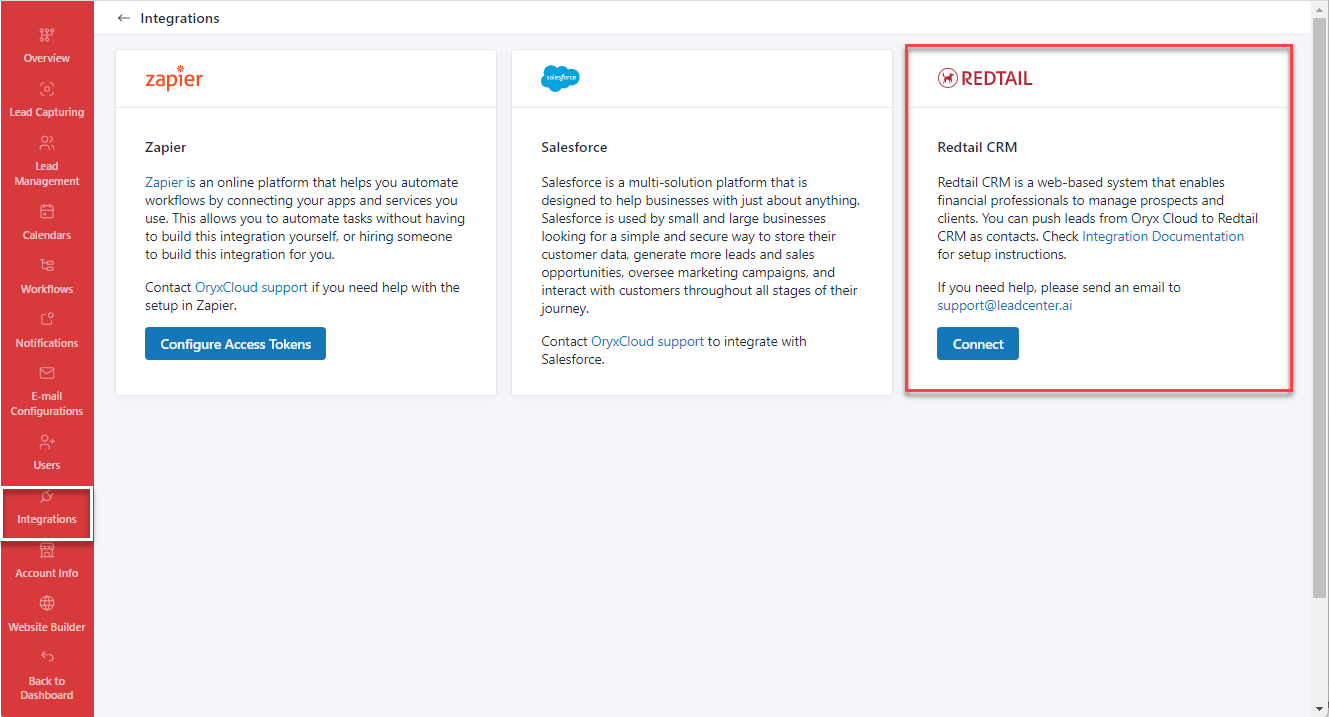
On the LeadCenter.AI, go to Setup > Integration All the LeadCentre.AI, related integrations are displayed.
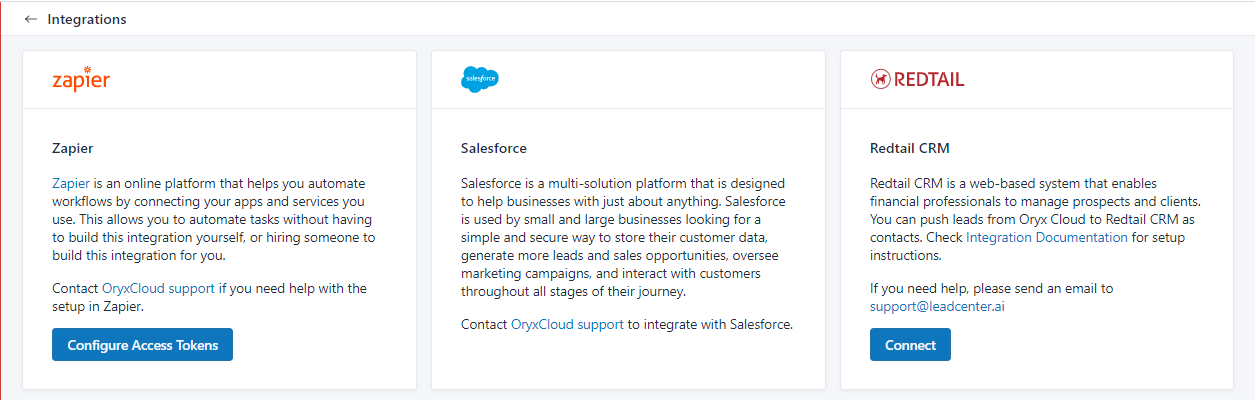
On the REDTAIL section, click on Connect button
In the login to Redtail CRM dialog box, enter your Username and Password and click on Connect button. The user should have a Redtail account.
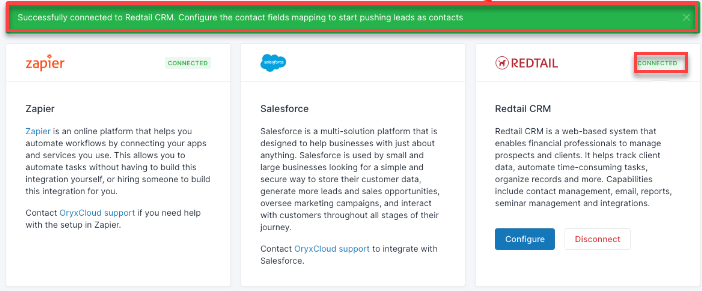
Once the integration is successful, a message will be displayed, “Successfully connected to Redtail CRM. Configure the contact fields mapping to start pushing leads as contacts”.
The Redtail CRM and LeadCenter.AI Lead Capturing accounts are connected. The next step is to map the fields between leads in LeadCenter.AI and Contacts in Redtail.
Mapping Fields
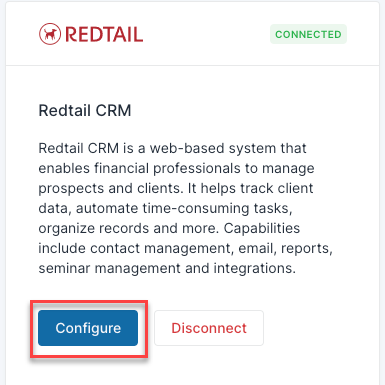
Once the LeadCenter.AI connection to Redtail is established and you have created all the additional custom fields you like to push to Redtail contacts, the next step is to map lead fields in LeadCenter.AI to Redtail CRM fields. To accomplish this, click on the Configure button in the Redtail box in LeadCenter.AI.
The mapping screen has all Redtails fields available to push data to. LeadCenter.AI lead fields will be available from the drop-down box of each Redtail Field.
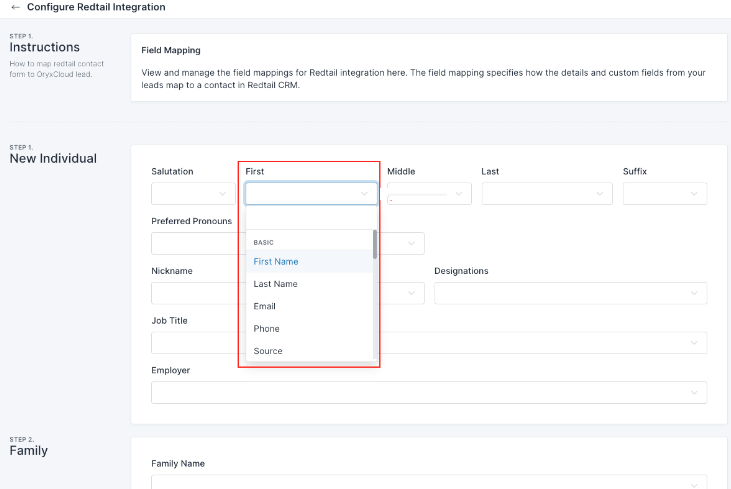
On the REDTAIL section, click on Configure button. The Configure Redtail Integration page is displayed. This is where you can map Redtail contact fields to LeadCenter.AI lead fields.
On the New Individual section, click on the First drop-down list. Here, for example, we are mapping Redtail contact first name field to LeadCenter.AI lead first.
Here, search for the First Name and select it from the list. The First Name in LeadCenter.AI is mapped to First Name in Redtail. When you push a lead from LeadCenter.AI to Redtail CRM, those fields will map together and the first name of the lead in LeadCenter.AI will be transferred to Redtail Contact First Name. If you cannot find the field you want to map in the drop-down, you should create it first as a custom field in LeadCenter.AI. For more information about creating Custom Fields in LeadCenter.AI, see How to Create Custom Fields. Note: When creating custom fields, make sure to create the correct custom field type and the data type will map accurately to the Redtail contact field type and data type.
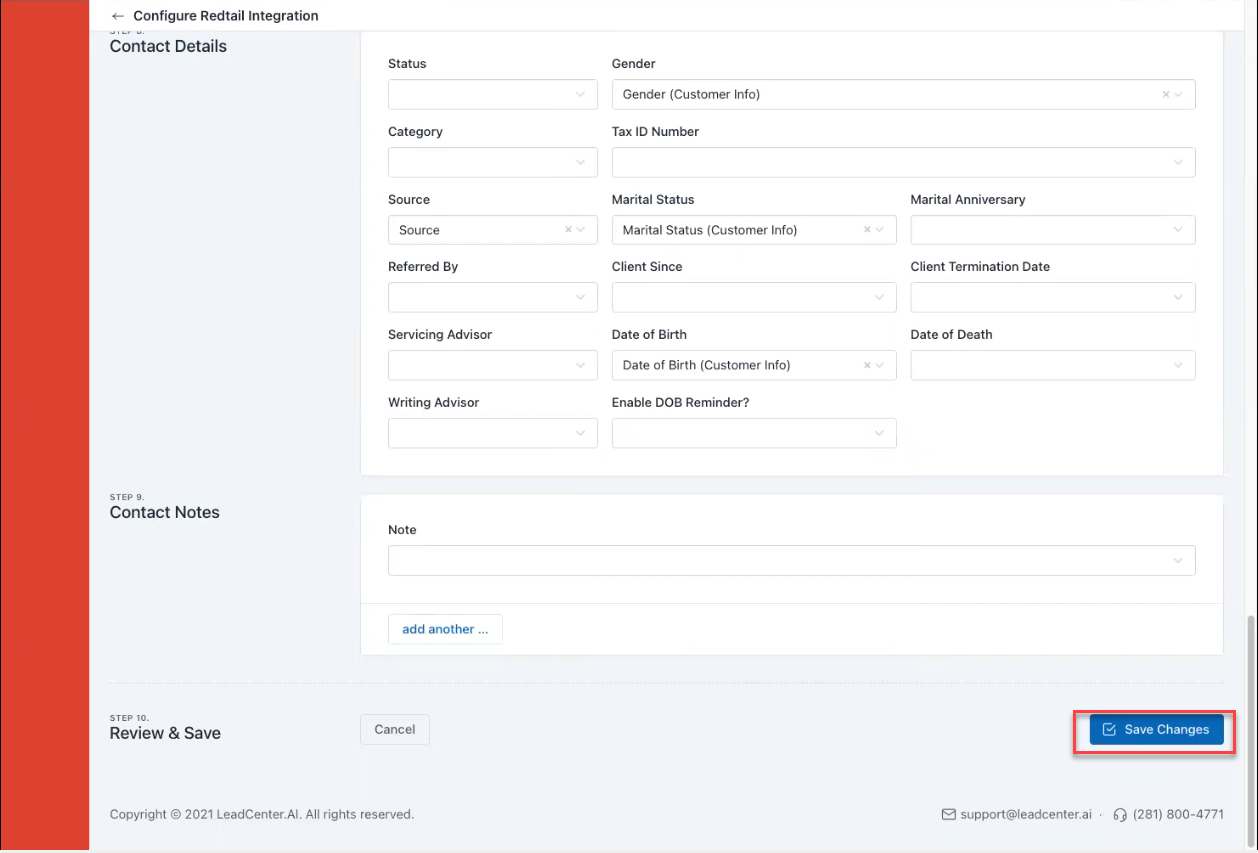
Click on Save Changes, once all the fields are mapped.
Pushing Leads to Redtail as Contacts
To push leads to Redtail as contacts, do the following:
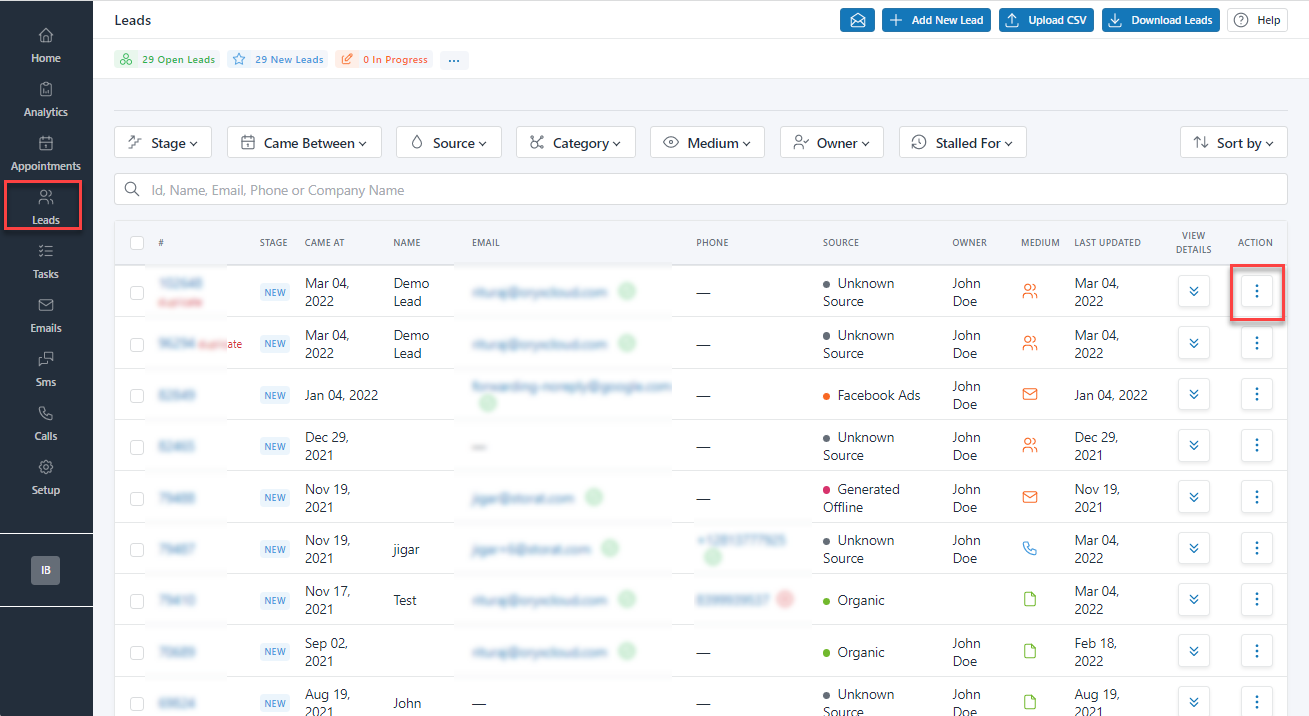
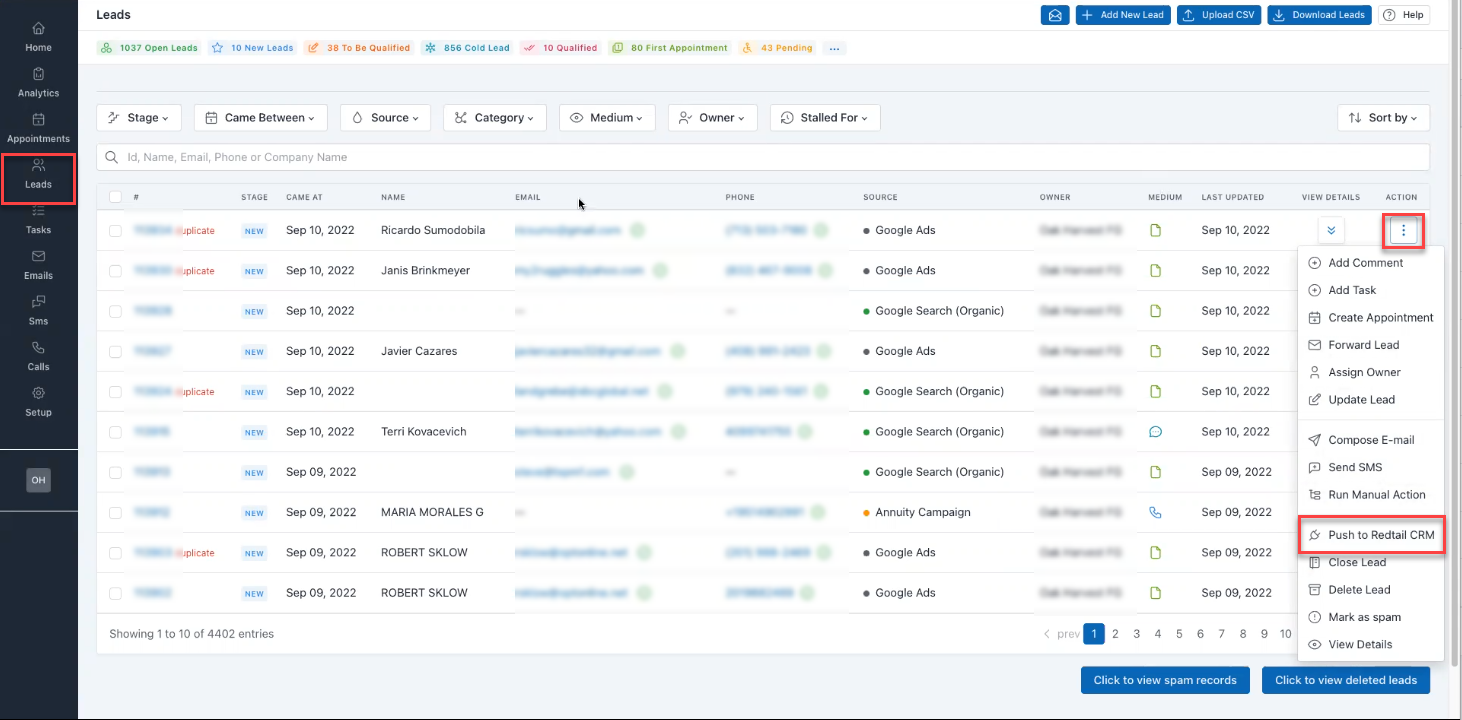
Click on the three dots under the Action column. The Action drop-down list will be displayed.
Click Push to Redtail CRM, to push the contacts Once you click the Push to Redtail CRM button, the job will start to push the lead as a new Individual contact. The push will be queued as a job. It will take a few minutes to create the contact, depending on the number of fields being pushed. Once the job is completed, you will receive an email notification.
Note :
If you mapped the Company field, the system will look up if the company exists in Redtail. If it does not exist, it will create a new business contact for that company. If you do not wish to create new companies in Redtail, please do not map the company field.
If you mapped the Spouse fields, the system will also create a new individual contact for the Spouse and link it to the new contact as a spouse.
If you mapped the Company field, the system will look up if the company exists in Redtail. If it does not exist, it will create a new business contact for that company. If you do not wish to create new companies in Redtail, please do not map the company field.
If you mapped the Spouse fields, the system will also create a new individual contact for the Spouse and link it to the new contact as a spouse.
If you mapped the Company field, the system will look up if the company exists in Redtail. If it does not exist, it will create a new business contact for that company. If you do not wish to create new companies in Redtail, please do not map the company field.
If you mapped the Spouse fields, the system will also create a new individual contact for the Spouse and link it to the new contact as a spouse.
If you mapped the Company field, the system will look up if the company exists in Redtail. If it does not exist, it will create a new business contact for that company. If you do not wish to create new companies in Redtail, please do not map the company field.
If you mapped the Spouse fields, the system will also create a new individual contact for the Spouse and link it to the new contact as a spouse.


 under the Action column.