LeadCenter.AI allows users to set notifications from the Notification Preferences page. Notifications are generally used to get timely information, for example when a new lead has arrived, when you want updates (daily, weekly, and monthly), when a transcription for a lead has been generated, or when you want to receive an email for your incoming SMS.
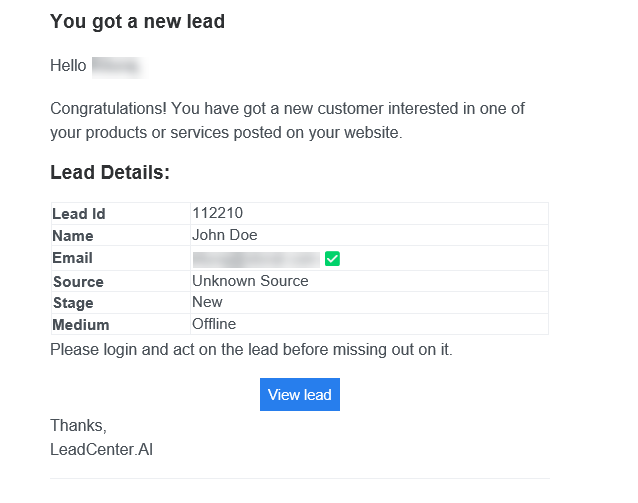
- Lead Notification is for the user to get notified each time they receive a new lead from various mediums like SMS, Emails, Offline, or Website Forms.
- Daily Update is for the user to get notified daily for lead reports for all the leads received the previous day.
- Weekly Update is for the user to get notified of the weekly leads report for all the leads received for the previous week. Weekly reports are sent on Monday.
- Monthly Update is for the user to get notified of the monthly leads report for all the leads received the previous Month. Monthly reports are sent on the 1st of each month.
- Lead Transcription Notification is for the user to get notified each time a lead transcription is generated.
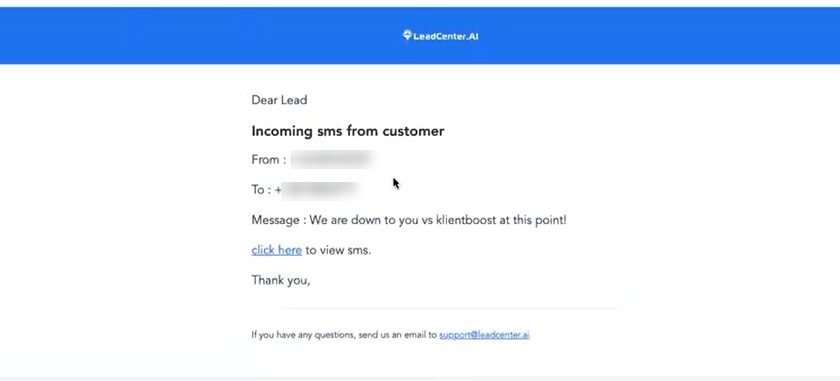
- Incoming SMS Notification is for the user to get notified each time incoming SMS comes in your virtual number.
Configuring the Email Notification
To set the Email notification, do the following:
- On LeadCenter.AI SETUP page click Notifications
The Notification Preferences page is displayed.
- To enable a notification click on the toggle button
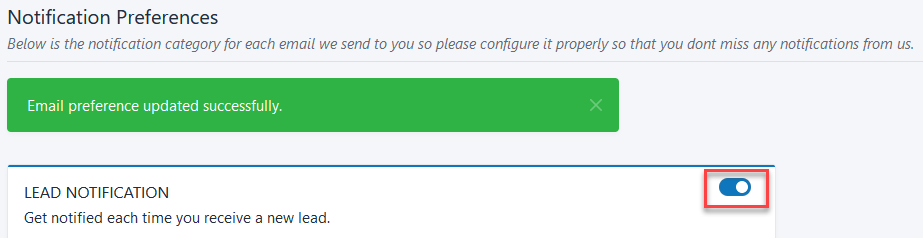
A notification “Email preference updated successfully” is displayed.
- Enter the email ID and click Add Me to receive the notification.
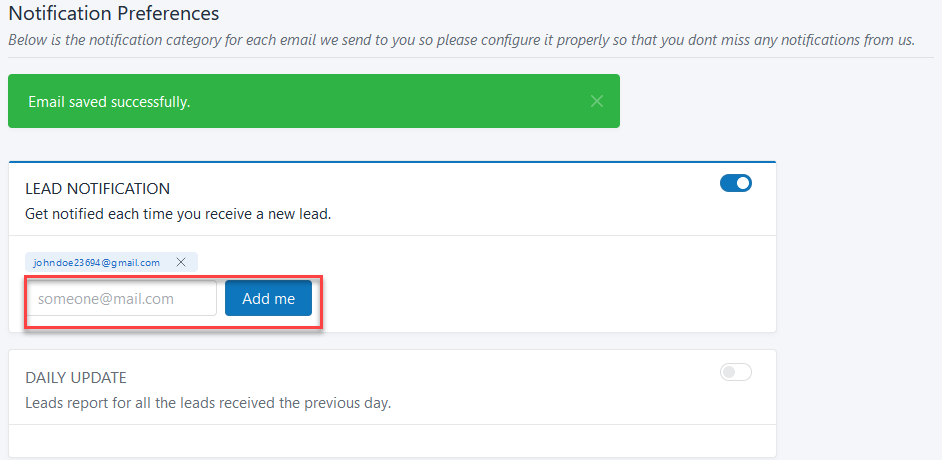
A notification “Email saved successfully” is displayed.
Each user who will be using LeadCenter.ai services needs to register an account on LeadCenter.AI. After a user registers an account, you may like to add users to manage your Dashboard and website. If you haven’t already added users to your Users page, you can do that now from the Setup page.
New users can manage your store from their personal dashboard under the Manage Stores tab.
 Added users will have full admin access to your website and Dashboard. Granular access control will be released in the future.
Adding a User
To add a user, do the following;
- Before adding the user click on https://app.leadcenter.ai/register to register a LeadCenter.AI account.
Once the user is registered, you can add them.
- In the LeadCenter.AI Setup page, click on Users
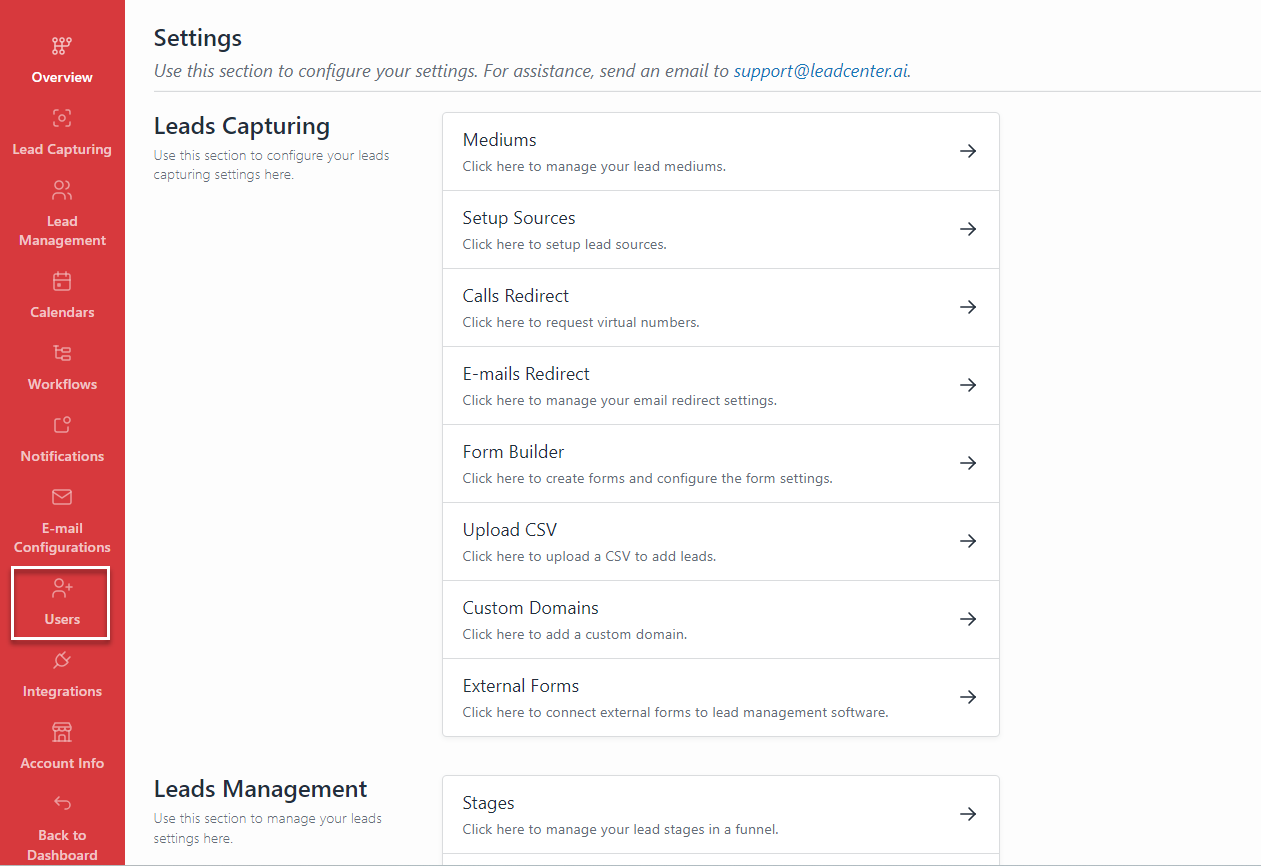
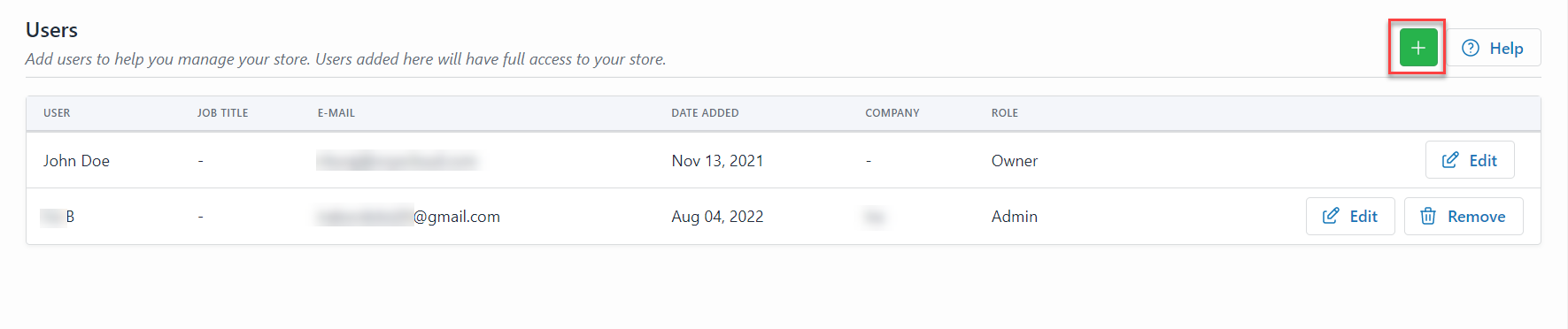
The Users page will be displayed.
- Click on the + button to add a new user.
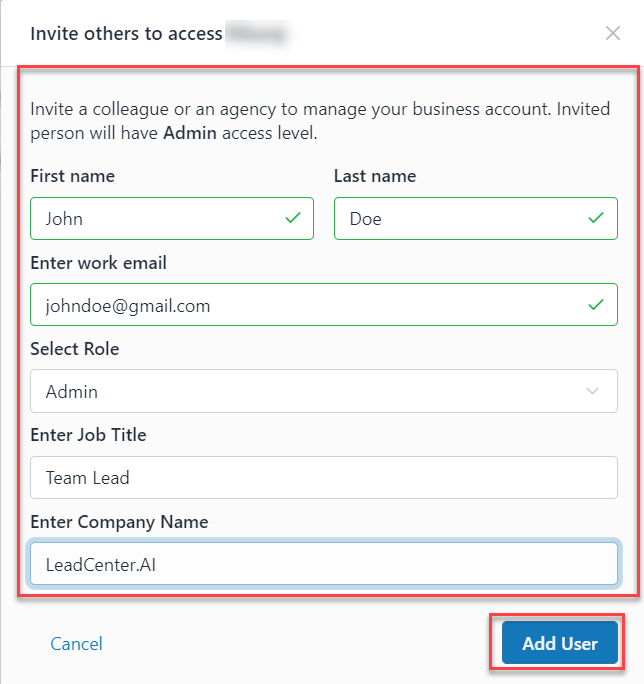
- Enter the basic details and click on Add User button.
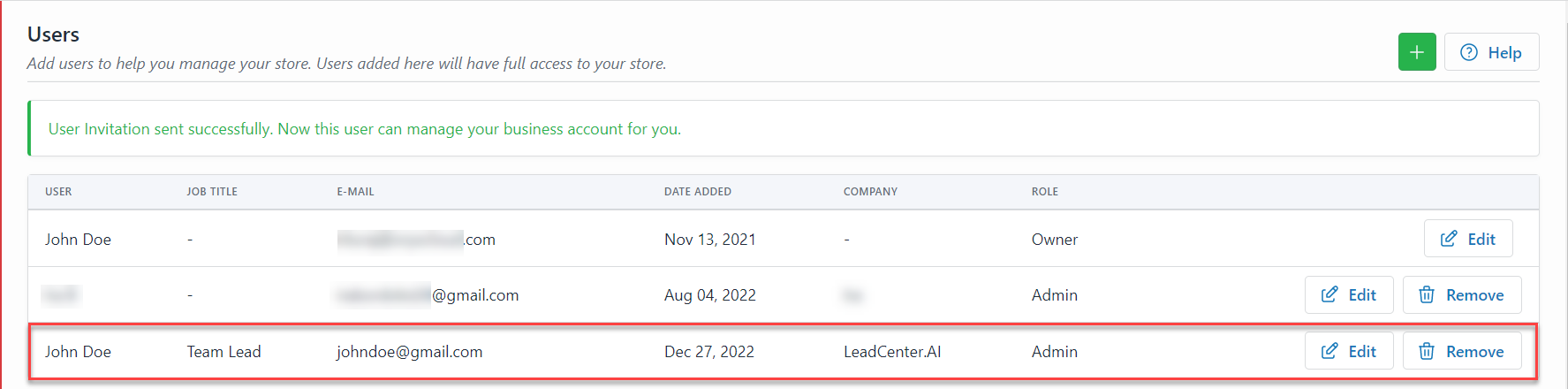
A success message will be displayed “User Invitation sent successfully. Now this user can manage your business account for you“. The new user will be added to the Users page.
Deleting a User
To delete a user, do the following;
- In the LeadCenter.ai SETUP, page click on Users
The Users page is displayed with the existing user list.
- Select the user to be deleted and click on the Remove button.
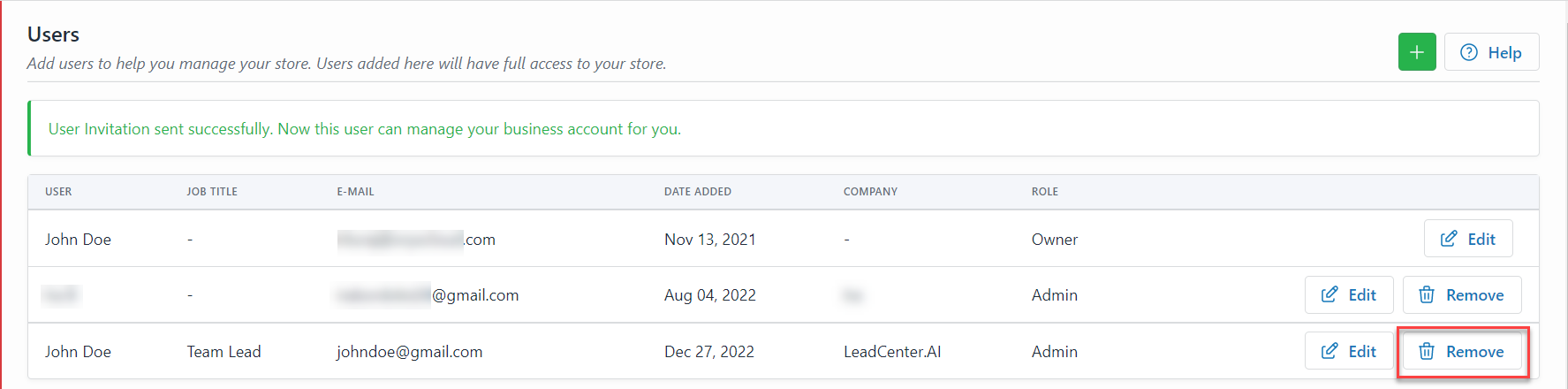
A message will be displayed ” User unauthorized successfully“.
The user is deleted from the Users page and all permission related to that user is also removed.
Updating User
To update a user, do the following;
- In the LeadCenter.ai SETUP, page click on Users
The Users page is displayed with the existing user list.
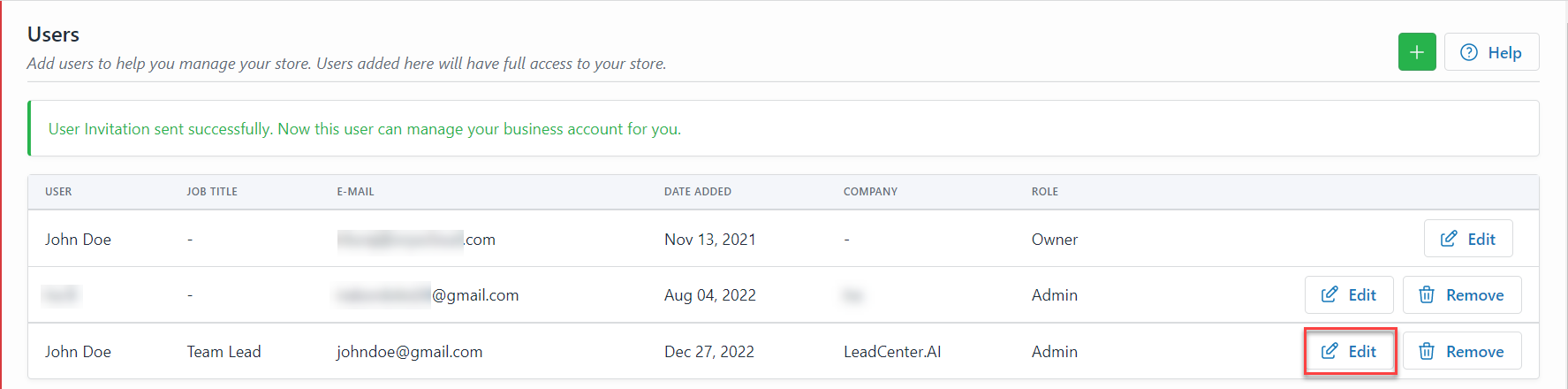
- Select the user to be updated and click on the Edit button.
- Enter Job Title or Select New Role from the drop-down list and click on the Update button.
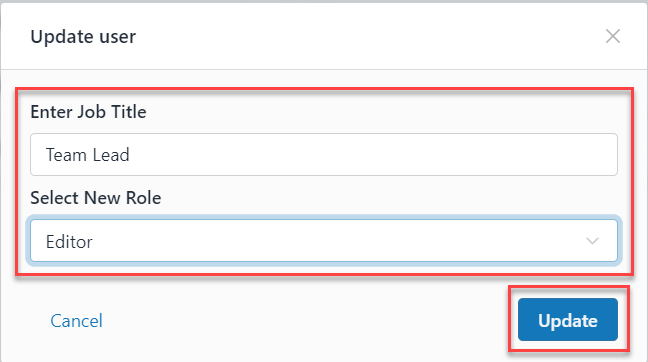
The user details are updated.

