

-
Getting Started
-
Managing Users and Notifications
-
Configuring Email Settings
-
Configuring Lead Capturing and Tracking
-
Configuring Lead Management
-
Configuring Lead Engagement with Workflows
-
Daily Management of Leads and Sales Engagement
-
Using LeadCenter.AI for Marketing
-
Building Forms
-
Getting Started
- Introduction to LeadCenter.ai Website Builder
- Domain Setup and DNS Records for your Website
- Website Themes: How to change your website template
- Customizing Website Header and Footer
- Website Pages: Adding and Deleting Pages to Your Website
- Menus: Adding, Deleting, and Organizing Menu Items in your Website
- Blog List: Manage Blog and Articles in Website
- Creating Landing Pages without Website Header and Footer
-
Page Designer Tool
-
Advanced Styling, Coloring, and Typography
-
Advanced Coding for Developers
-
Configuring Calendars and Appointments
-
Integration with Zapier to push leads to other CRM using Zapier
-
Integration with Redtail
LeadCenter provides you the ability to integrate LeadCenter Calendars with Redtail CRM calendars. To enable the integration, follow these steps:
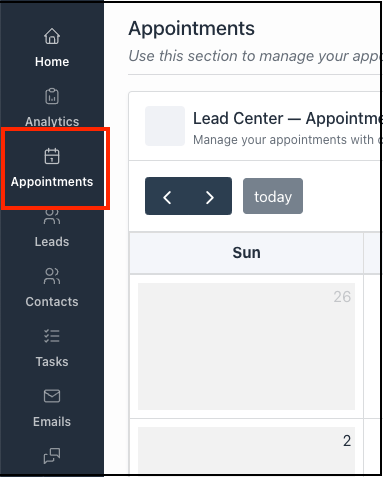
- On LeadCenter.AI, click on Appointments on the left menu
2. Click on the Switch Calendar button in the upper right corner and select the calendar that you want to connect to the Redtail calendar 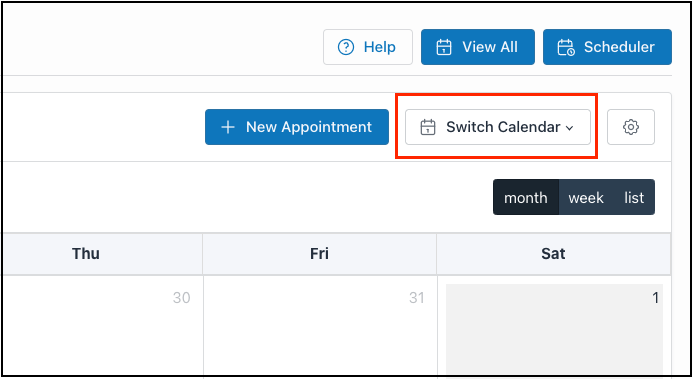
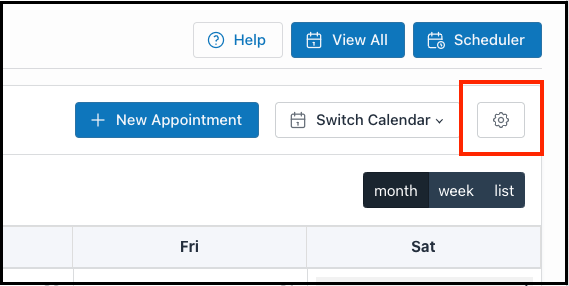
3. Click on the setup button (gearbox) in the upper right corner
4. Scroll down to the bottom of the page until you reach Step 5, Connect Your Accounts
5. The Login to Redtail CRM dialog is displayed. Click on the Connect button

6. Enter your Redtail CRM Username, Password and click on the Connect button.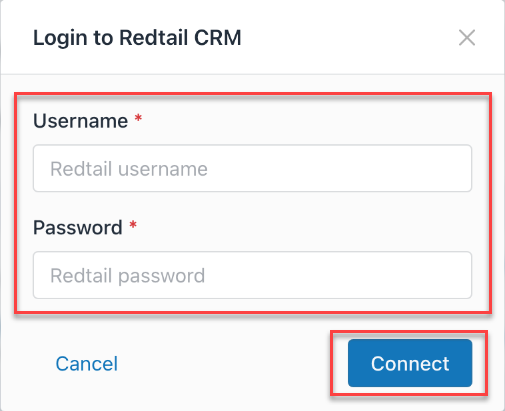
This will sync your calendar in LeadCenter with the Redtail CRM calendar.
Hint: Connecting one user calendar will NOT connect the calendar for all users. each user must do the same steps for her\his own calendar.